Cookie Consent Management in 2026, Part 2: Technical Tips


In part one of this series, I shared some high-level thoughts on why organizations are increasingly focused on cookie consent and some things I’ve learned about how to pick a good solution and roll it out in your organization.
In this article, I want to focus on the more technical aspects of identifying what source is setting a cookie so that you can ensure that your cookie consent solution is handling it properly.
Turn off content blockers
In order to test what cookies could be set, you have to turn off any features that may block cookies. For me, that meant turning down browser privacy setting and turning off extensions like Privacy Badger and uBlock Origin. My home network runs on Eero Plus which also features ad blocking. Everything had to be turned off.
Don’t use default Incognito mode
Chrome in Incognito mode is my default testing environment. Incognito mode provides a clean slate when I’m troubleshooting performance issues.
However, I wasn’t seeing some of the cookies I expected in my tests. Turns out that when Chrome is in Incognito mode, it blocks third-party cookies by default. You can bypass this behavior by clicking on the eye icon in the toolbar.
I used Incognito almost exclusively for my testing which means I’ve have been doing this wrong for years.
Lazy-loading and dynamic cookies
As I ran my tests, I started to see cookies that only showed up occasionally. I finally figured out that these cookies were set by scripts that were lower on the page and were only loaded when someone scrolled down.
In addition, ad networks can include different scripts which in turn set different cookies based on a user’s geography, etc. These dynamic insertions are hard to predict. Thankfully, these changing cookies seem primarily limited to ad networks so if you categorize the parent script correctly, then any additional cookies added later will also be categorized correctly.
Finding the cookie culprit
Figuring out what asset set a cookie can be challenging. When you look at the list of cookies in Dev Tools, you can get some hints about what might be setting the cookie from the cookie’s name and domain. If you’re lucky, there is only one asset coming from the domain, and you’ve found your culprit. Most of the time, you won’t be that lucky.
Unfortunately, the cookie panel doesn’t contain the equivalent of the initiator column in Chrome’s network panel. When I’m conducting performance audits, I rely on the initiator section to help me track down the chain of requests that led to an asset getting downloaded. I’d love to have something similar for cookies.
Instead, you either need to make some intelligent guesses or create some tooling. Absent tooling, my investigation steps look something like this.
First, I look at the domain name and tracker name to try to determine what service I think might be setting a cookie. For example, a cookie with the domain set to .linkedin.com with the name __cf_bm likely was set by a LinkedIn script and the cf name suggests that the cookie is related to Cloudflare.
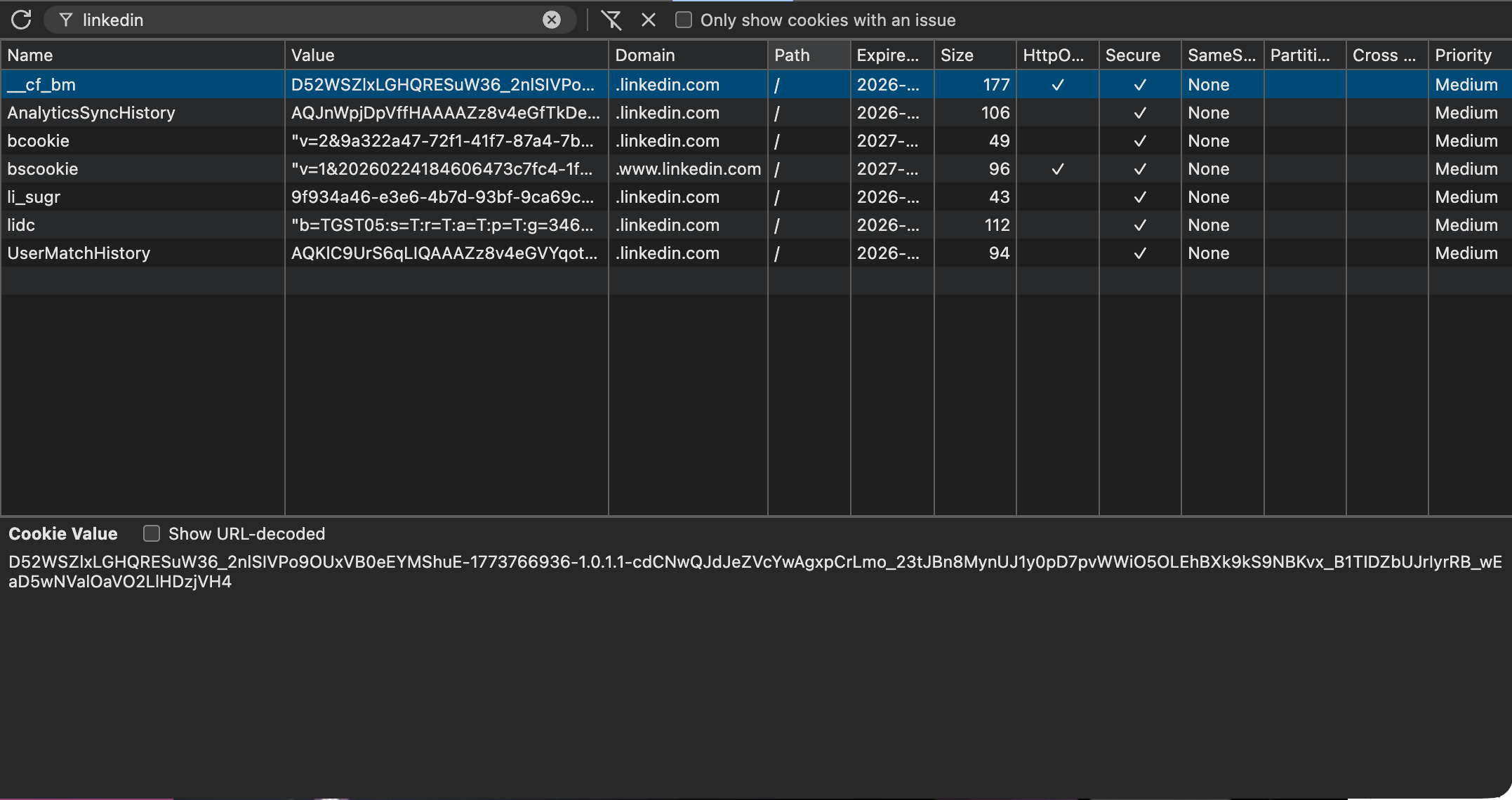
I’ll then look up the cookie using a service like Cookiesearch.org. In this example, the search will tell me that __cf_bm is set by Cloudflare and “is used to support Cloudflare Bot Management.”
Once I have a domain for the cookie, I turn to the network panel to see if I can find the culprit. I’ll filter the network panel to only show assets coming from suspect domain.
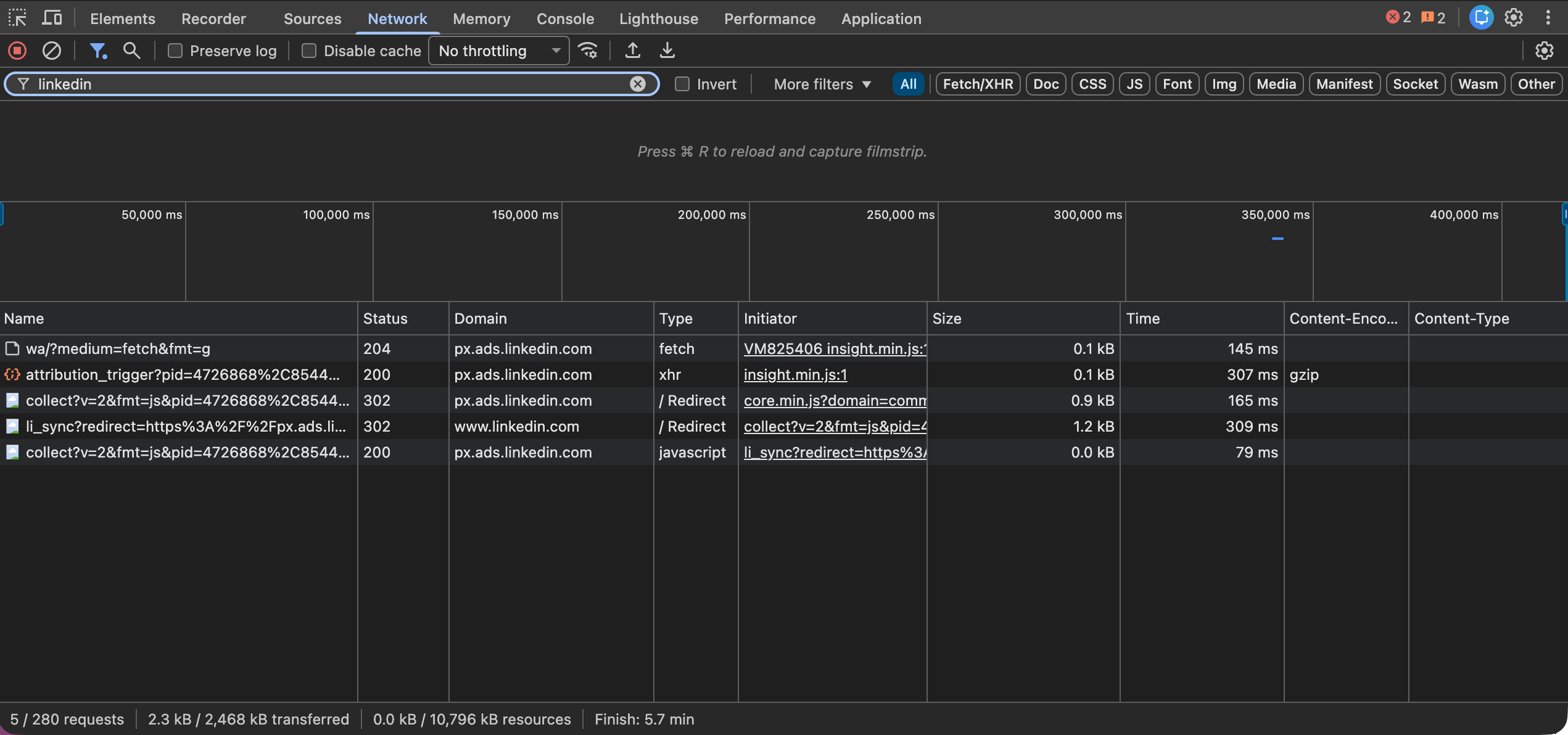
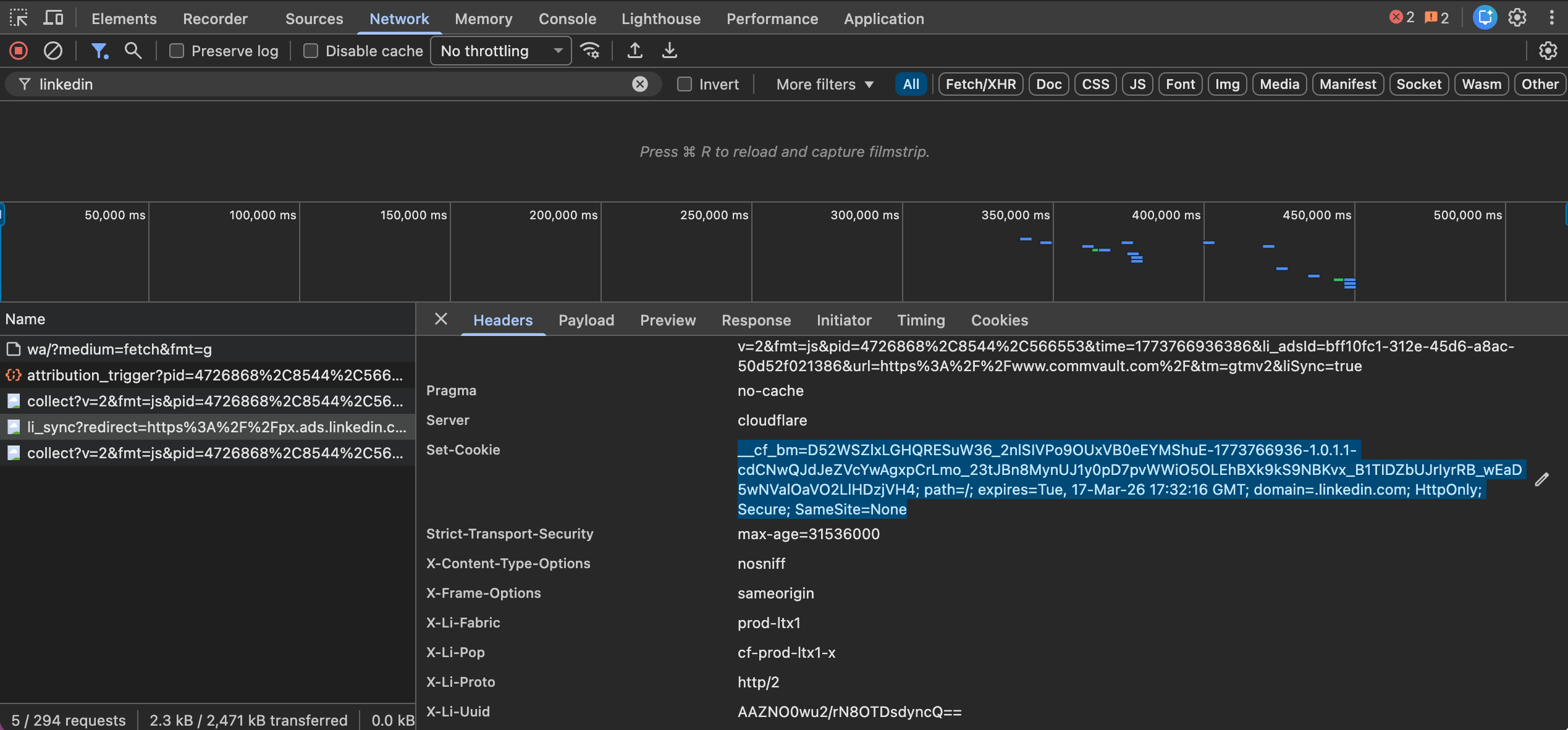
Cookies can be set by HTTP Headers or JavaScript. HTTP Headers are easier to look for, so I always start there. In the network panel, I look at the response headers for each asset that comes from the suspect domain. The response headers are the headers sent by back the server when the browser requested the asset. The server can ask the browser to create cookies using Set-Cookie headers. There can be more than one Set-Cookie header for a given asset.
If the cookie isn’t set using HTTP Headers, it can be more difficult to isolate which bit of JavaScript is setting the cookie. I often use request blocking in the network panel as a blunt tool to isolate which script sets the cookies.
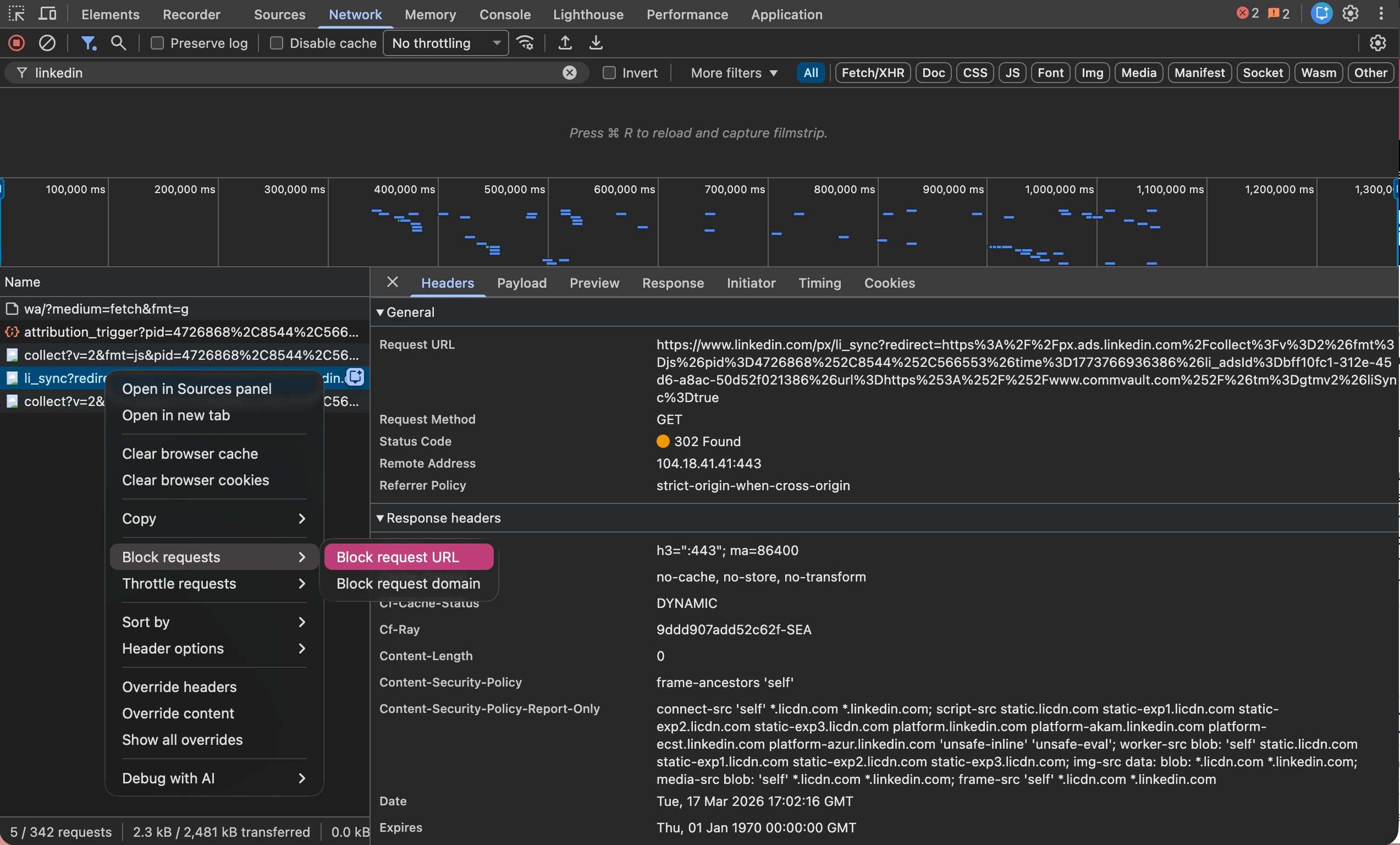
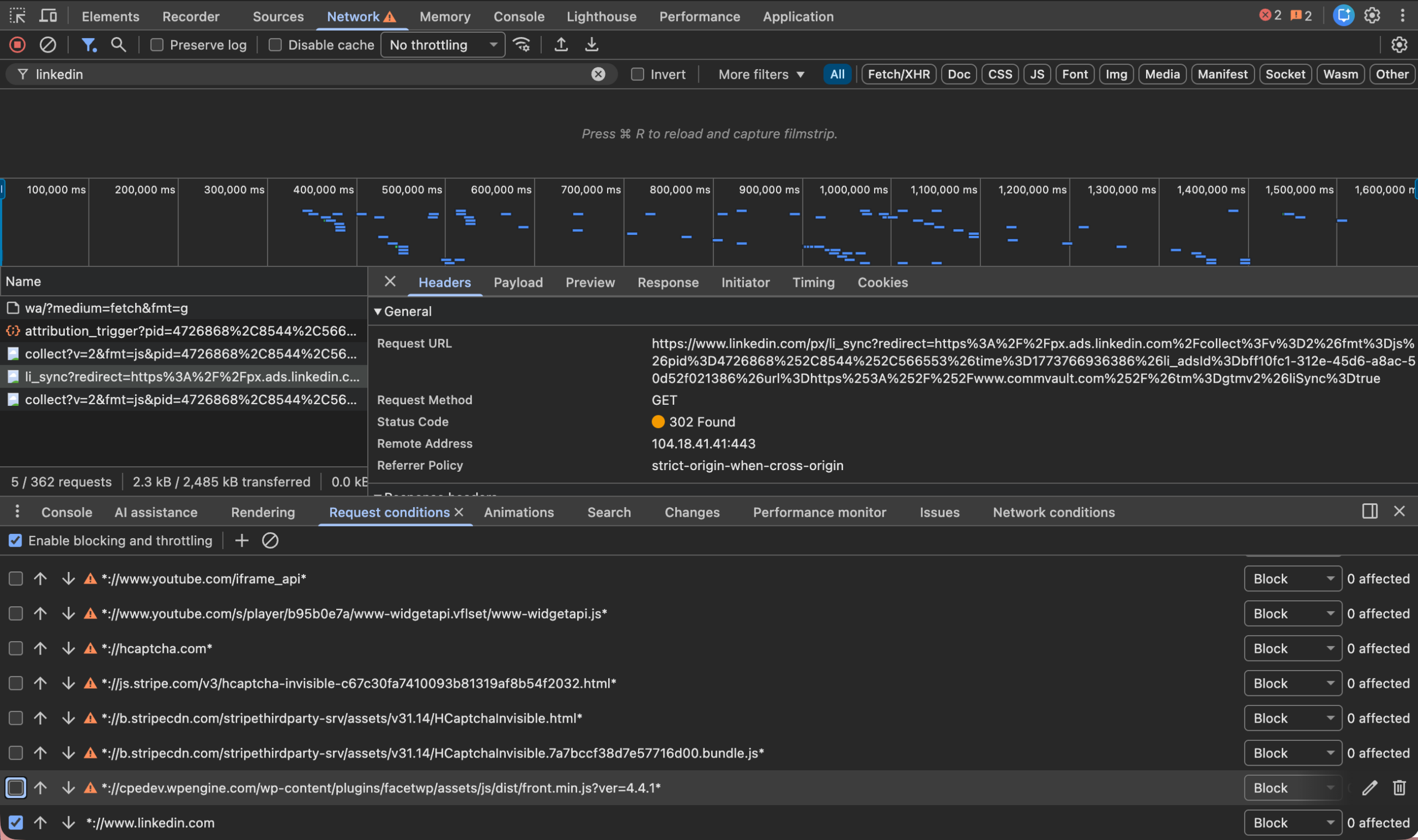
First, I’ll block the entire request domain, clear all cookies, and then check to see if the cookie is still getting set. If it is, I’m looking at the wrong source. If the cookie is no longer being set, I now know that one of the assets I blocked is responsible.
Often I’m able to make an educated guess about which asset is likely to set the cookie based on the description of the cookie and the asset names. If I have a hunch, I’ll try blocking that asset alone and see if the cookie is still set.
If I don’t have a guess or I guessed wrong, I’ll narrow it down by blocking half the requests from the suspect domain to see if that blocks the cookie. If it does, I know where to continue looking. If not, the cookie must be set in the other half. Repeat this a few more times and you can quickly winnow down even a long list of assets.
Cookies blocked by the browser
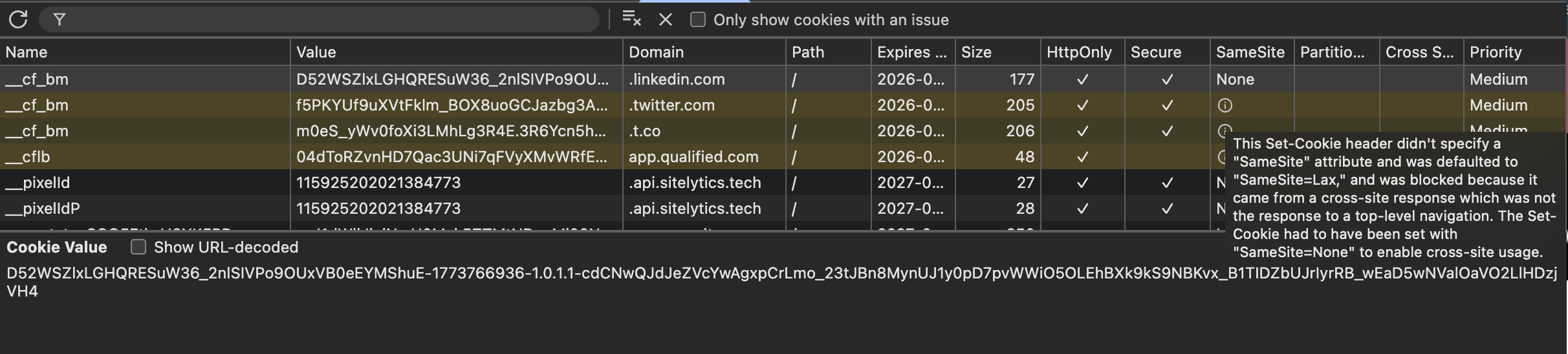
Cookies that were blocked by the browser may still show up in cookie list to help with troubleshooting. Their row will be distinguished in a different color and if you hover over the associated request, you will see information about why the cookie was rejected.
Testing using a headless browser
Manual testing can only get you so far. I had to audit hundreds of cookies for a client, so I looked for ways to automate the process. I couldn’t find anything that did exactly what I needed so with Claude Code’s help, I wrote a command line tool that used Puppeteer to see which cookies were set before and after consent was granted.
Puppeteer helped me find cookies that my manual testing had missed. Every time Puppeteer launches, it has a clean slate. Therefore, any cookies that my script finds must have been set by the test page. This helped capture third-party cookies that were only showing up on the first page load.
I also added logic to intercept cookies being set to create my own version of the the initiator chain. Eventually, I expanded the tests to look for local storage, session storage, and IndexDB. Puppeteer also scrolls the page to make sure it captures any lazy loading cookies.
If you need to do any significant amount of testing, I recommend using Puppeteer, or its alternative Playwright, so you have a clean testing environment and can automate the process.
Cookie consent can be fun?
When our clients first asked for help with their cookie consent management, I wasn’t looking forward to it. I like designing and building solutions for users not dealing with legal requirements. Plus, cookie consent banners are annoying.
But by the end of these projects, I found myself enjoying the work. The cookie consent tools do a good job of recognizing most cookies, but there are always a few mysteries in the box. I love a good mystery. And sometimes you find truly surprising things like a site manifest file setting multiple cookies.
Plus, there is satisfaction in knowing that people will have their privacy preferences honored. Not to mention the fact that we’re able to significantly reduce the legal risk for our customers.
Cookie consent management can seem daunting at first, but it is important for your organization and its users. And maybe I’m just a sicko, but I found it to be a lot of fun.
Jason Grigsby is one of the co-founders of Cloud Four, Mobile Portland and Responsive Field Day. He is the author of Progressive Web Apps from A Book Apart. Follow him at @grigs.